Prepare your
flyer artwork.
To animate a flyer, export its background and text as separate files, choose an effect in the studio, then generate and download the video. The transparent text layer keeps your event details intact. Here’s how to prepare it.
Export your design as two layers
Open your editable design file. Export the background first, then export the text and logos with a transparent background.
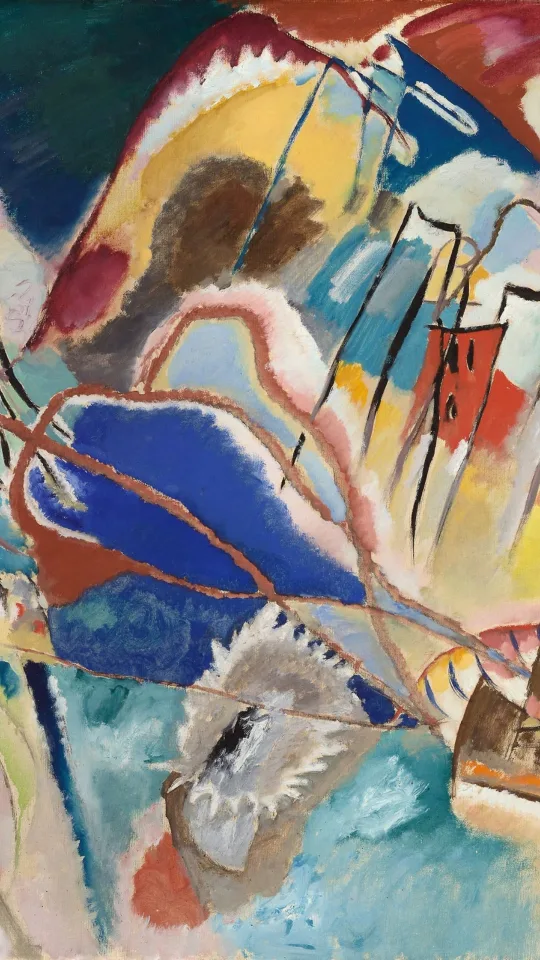
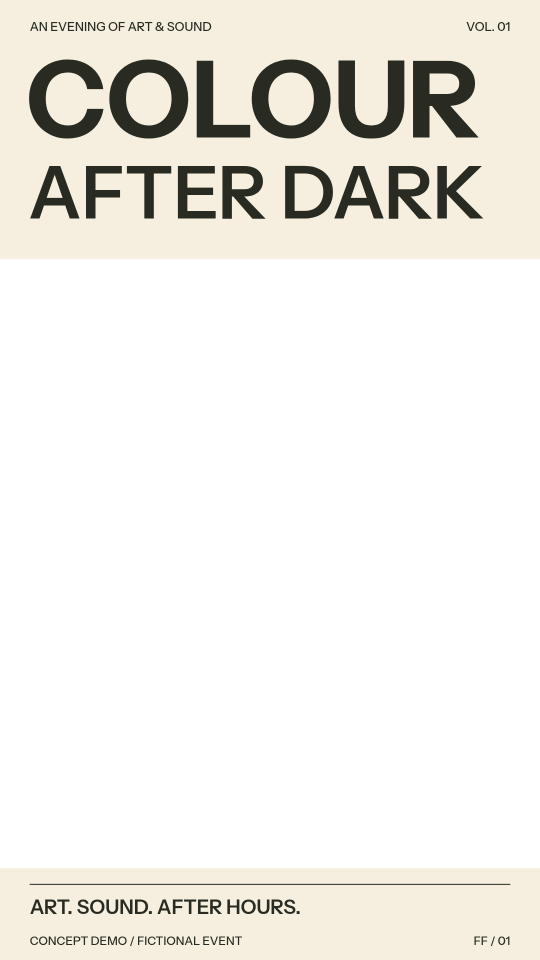
- Duplicate your finished design. Keep your original file safe. Use the same canvas size for both exports.
- Export the background. Hide the text, logos and other details you want to protect. Export the remaining artwork as PNG, JPG or WebP.
- Export the protected layer. Hide the background and export the text and logos as a transparent PNG. Keep their original positions; do not crop to the letters.
- Check the two files together. They should align exactly when stacked. Each file must be under 8 MB, with dimensions between 256 and 8192 pixels and no more than 40 megapixels.
AI can change lettering inside a flattened JPG. To preserve your text, ask the designer for separate background and type exports. FlyerFinish requires you to supply those layers.
Download the sample files
Use our sample to learn the workflow. The event is fictional, and the painting is public domain.
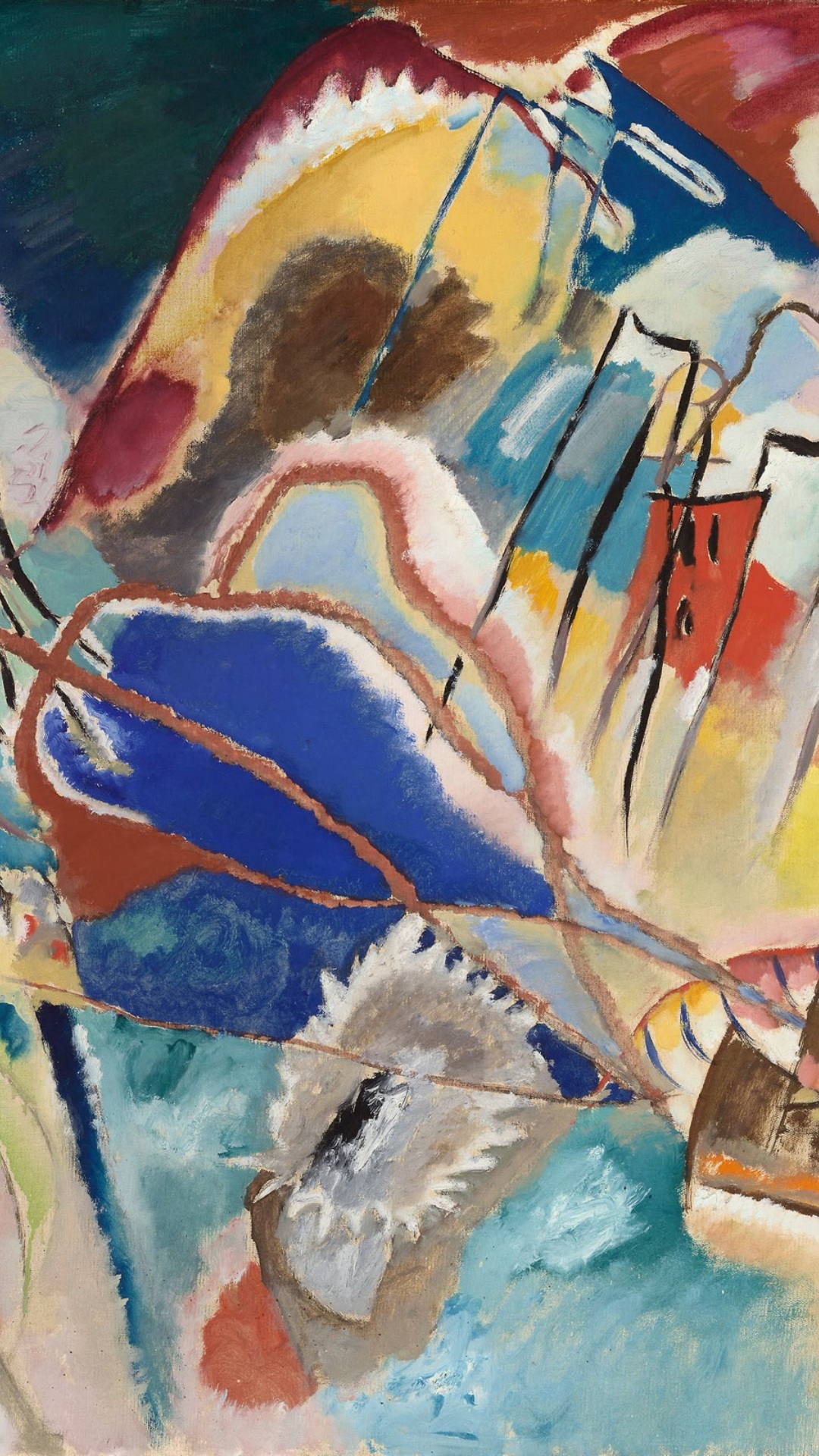
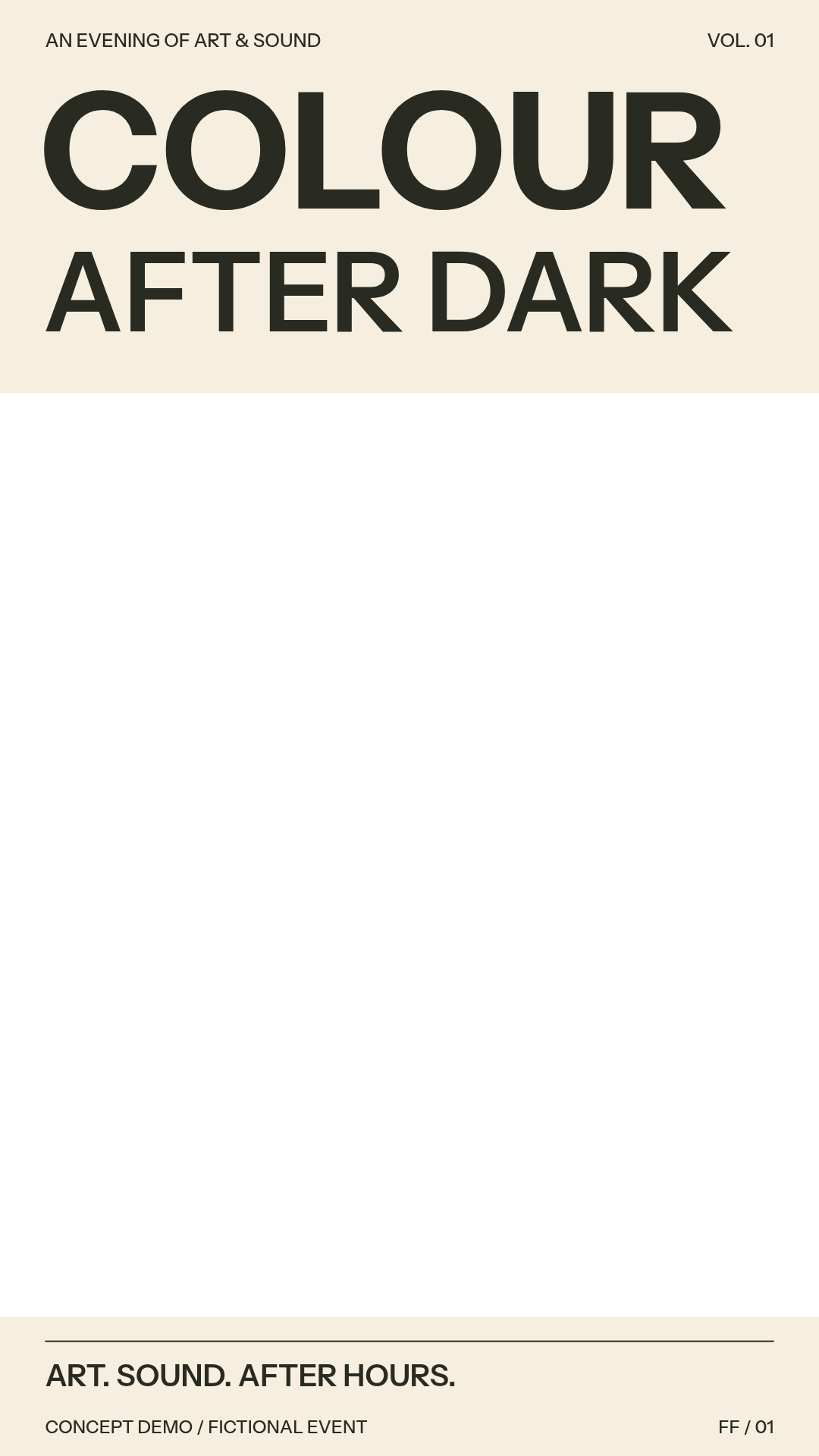
Export sizes
Choose the format before generating. For the most predictable layout, prepare your artwork at that same aspect ratio. We fit both layers together inside your chosen format. A different ratio adds a light border.
| Placement | Dimensions | Ratio |
|---|---|---|
| Story / Reel | 1080 × 1920 | 9:16 |
| Portrait feed | 1080 × 1350 | 4:5 |
| Square post | 1080 × 1080 | 1:1 |
| Landscape | 1920 × 1080 | 16:9 |
Choose a five- or ten-second silent MP4. Check the whole video before posting, especially any names, faces, logos and details left inside the animated background.
Questions & answers
14 questions found
What is an animated flyer?
An animated flyer is a short video version of an event poster, with movement in the artwork. FlyerFinish turns your existing design into a five- or ten-second MP4 for stories, feeds and landscape posts. Upload a separate transparent text layer to keep the date, venue, lineup and logos still while the background moves.
Can I animate a flyer made in Canva, Photoshop or another design app?
Yes, if you can export the background as a PNG, JPG or WebP. Export the text and logos separately as a transparent PNG on the same canvas. FlyerFinish works with those image exports, rather than the editable design file. If you only have a flattened poster, ask your designer for the two layers to preserve the lettering during AI animation.
Prepare your filesWhat do I need to upload?
A background image in PNG, JPG or WebP, up to 8 MB. To protect text and logos, also export them as a transparent PNG with the same proportions. Both files should use the same canvas and alignment.
See the artwork guideWill my text and logos stay the same?
Upload your text and logos as a separate transparent PNG. We add that layer over the finished animation to preserve its original content. Text embedded in the background can change during AI generation. You’ll need to export the layers from your design file yourself.
What can I download?
A five- or ten-second, silent MP4 in Story/Reel (1080 × 1920), portrait feed (1080 × 1350), square (1080 × 1080) or landscape (1920 × 1080). Each generation covers one format. We fit the whole artwork inside it, adding a light border when the proportions differ.
Can I try the studio before buying credits?
Yes. You can open the sample artwork and compare motion examples in each export format without an account. Generating a new video requires credits.
What does one credit cover?
One confirmed five-second generation in one format. A ten-second generation uses two credits. The length determines the credit cost. Viewing samples and downloading an existing result use no credits.
What happens if a generation fails?
We return all credits for a generation confirmed as failed. If the outcome is unclear, the request is marked for review and its credits stay reserved while we check. Resuming that same saved request uses the credits already reserved.
Read the credit policyHow long does it take?
Generation time depends on demand and processing. The studio shows your request’s progress. You can leave the page and return to your saved request later.
Which effects can I choose?
Slow zoom moves closer to the background. Pan travels across it. Light sweep passes a soft light over the image. Scene motion uses AI to animate the scene, with camera movement and details that can change between generations. Choose Restrained, Balanced or Expressive motion strength for any effect. A separate type layer stays still.
Can I use a result for a client or event?
Use artwork, fonts, logos and likenesses you are allowed to upload and animate. Review the final result and the AI provider’s applicable terms before using it commercially. FlyerFinish does not give you rights to someone else’s material.
Read the termsWhere do my uploads and videos go?
Artwork is kept for 90 days after upload, and finished videos for 90 days after completion. Your account and studio show expiry dates, downloads and delete controls. Files are private to your account. For AI generations, preparing a request sends the background to Higgsfield, whose retention rules also apply. Download anything you want to keep.
Read the privacy policyCan you add music or make a seamless loop?
Exports are silent, and seamless loops are not guaranteed. You can add audio after export in your publishing or editing app.
How do I sign in or change my email?
Sign in with a code sent to your email, or use Google when available. You do not need a password. Email address changes are unavailable; contact help@flyerfinish.com if you need help.
Open account settingsHelp with your artwork
Tell us what you were trying to make and what happened. A generation reference helps us find the right request.
Contact support