1. Prepare two layers
Start with the editable flyer in your design app. Keep the canvas size and the position of every element the same in both exports.
- Hide the text, logos and any other elements that must stay still. Export the background as a JPEG, PNG or WebP.
- Hide the background and show those fixed elements again. Export them as a PNG with a transparent background. Keep the full canvas, including the empty space around the text.
For this example, In bloom uses a flower painting behind a separate panel of event details. The panel belongs in the foreground along with the lettering.
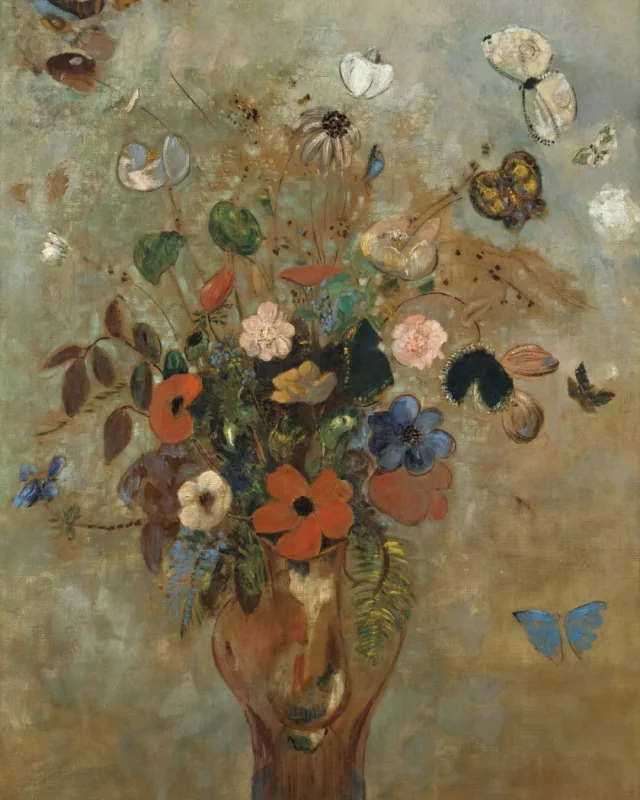
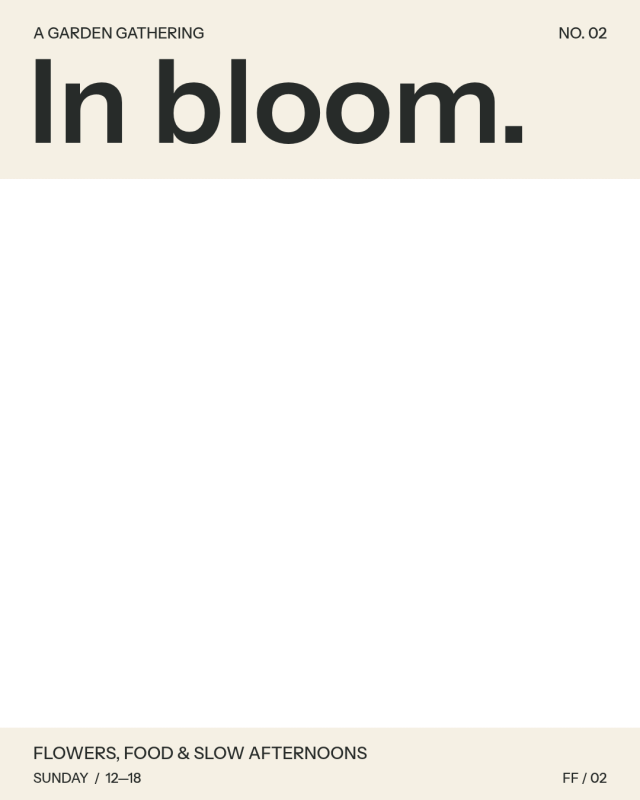
Try it with the background JPEG and transparent foreground PNG. Both are ready to upload.
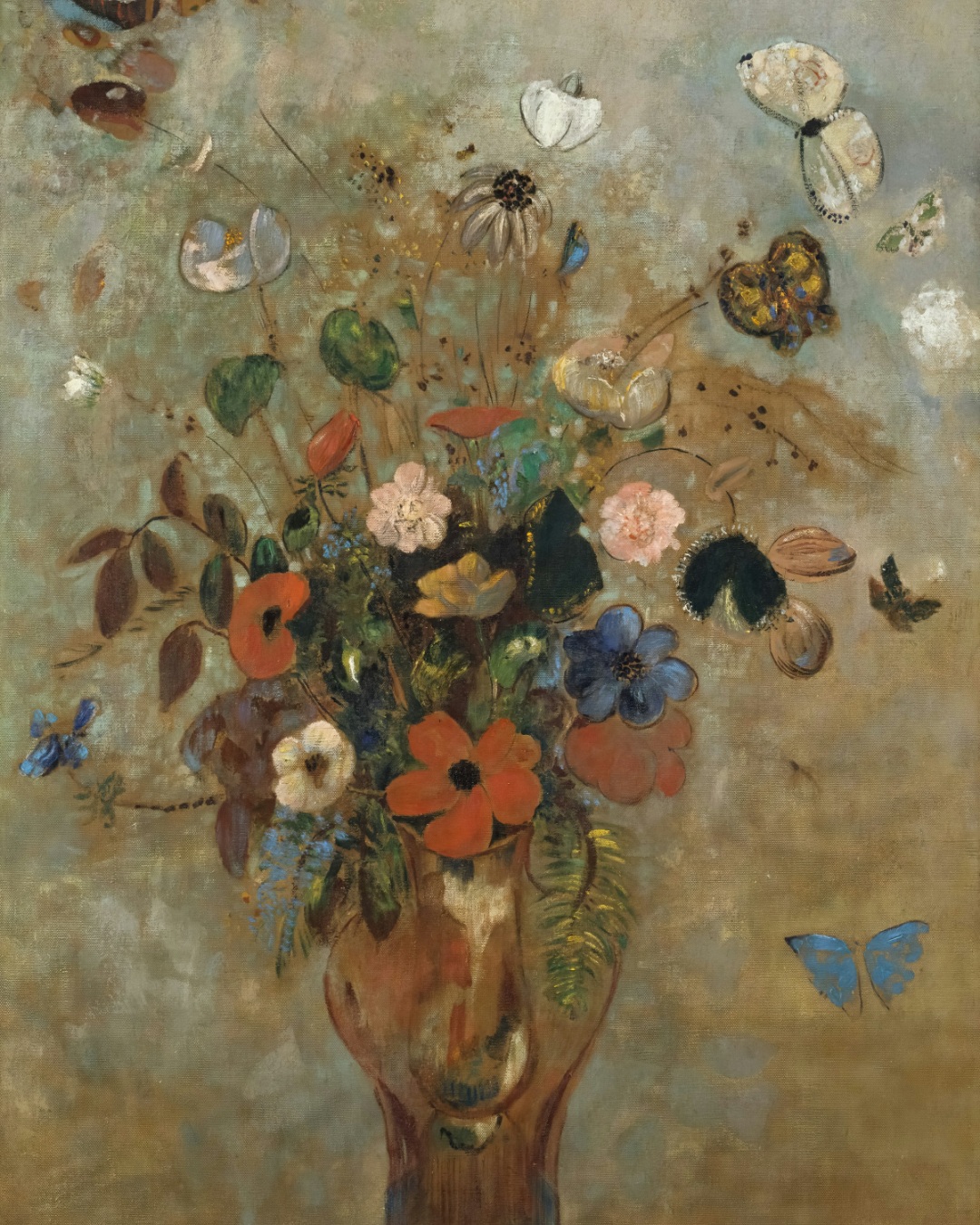
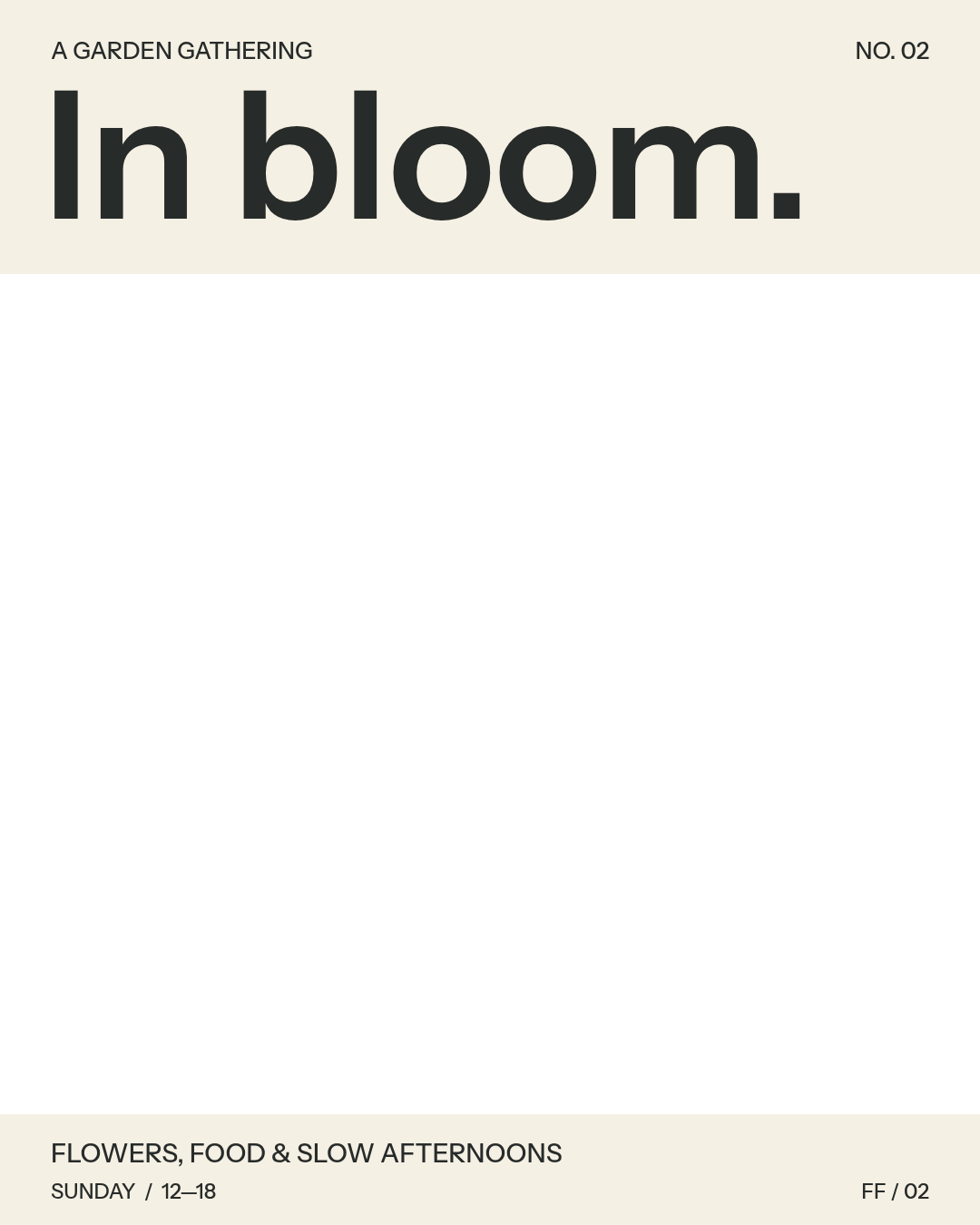
Fictional event. Public-domain artwork: Odilon Redon, Still Life with Flowers, Art Institute of Chicago.
2. Match the format to the artwork
Open the studio, upload both layers and choose the matching shape. In bloom is 4:5, so use Portrait / Feed at 1080 × 1350. Use 9:16 for a vertical story, 1:1 for a square post or 16:9 for a landscape video.
FlyerFinish fits the whole design inside the output. A different aspect ratio can leave a light border. For an edge-to-edge video, prepare both layers at the same aspect ratio as the export.
Each file must be under 8 MB. Images can be 256–8192 pixels on each side, up to 40 megapixels in total. The export guide lists all output dimensions.
3. Choose what should move
For the flower painting, start with Scene motion and Balanced strength. This recorded result adds movement within the arrangement while the text panel stays still. AI can also change details or the camera position, so your next generation may look different.
For a predictable camera move, choose Slow zoom or Pan. Light sweep adds a passing light effect. These controlled effects use the source image without generating new scene details.
Choose five seconds for one credit or ten seconds for two credits. All examples here are five-second recordings. Check the credit cost in the studio before generating. Current pack prices are on the pricing page.
Compare In bloom’s effects and strengths before choosing your own.
4. Review the whole video, then download
Play the result from start to finish. Check the date, venue, names and logos. Look for distracting changes in the artwork, and check whether the background makes the text harder to read as it moves.
Download the finished silent MP4 and preview it on your phone before posting. You can add music in your publishing app. Videos remain available in your account for 90 days after completion, so save a local copy.
If the result looks wrong
The letters change or wobble
Check that the background export contains no lettering you need to preserve. Put all essential text in the transparent foreground. Text baked into the background can change during AI animation.
The background is hidden
The foreground may have an opaque canvas. Export it again with transparency enabled. Keep intentional panels behind the text, but remove any full-page fill that covers the artwork.
There is an empty border
Match the source canvas and export aspect ratio. Changing a portrait flyer to landscape requires a new layout if you want it to fill the frame.
I only have a flattened JPEG
Ask for separate exports from the original design. FlyerFinish does not automatically separate a finished image into accurate text and background layers. Use the supplied samples to learn the workflow while you get those files.
The AI adds something I did not want
Try a controlled effect when the original artwork needs to remain unchanged. AI strength is a direction for the generation, not a guarantee of how far objects will move.